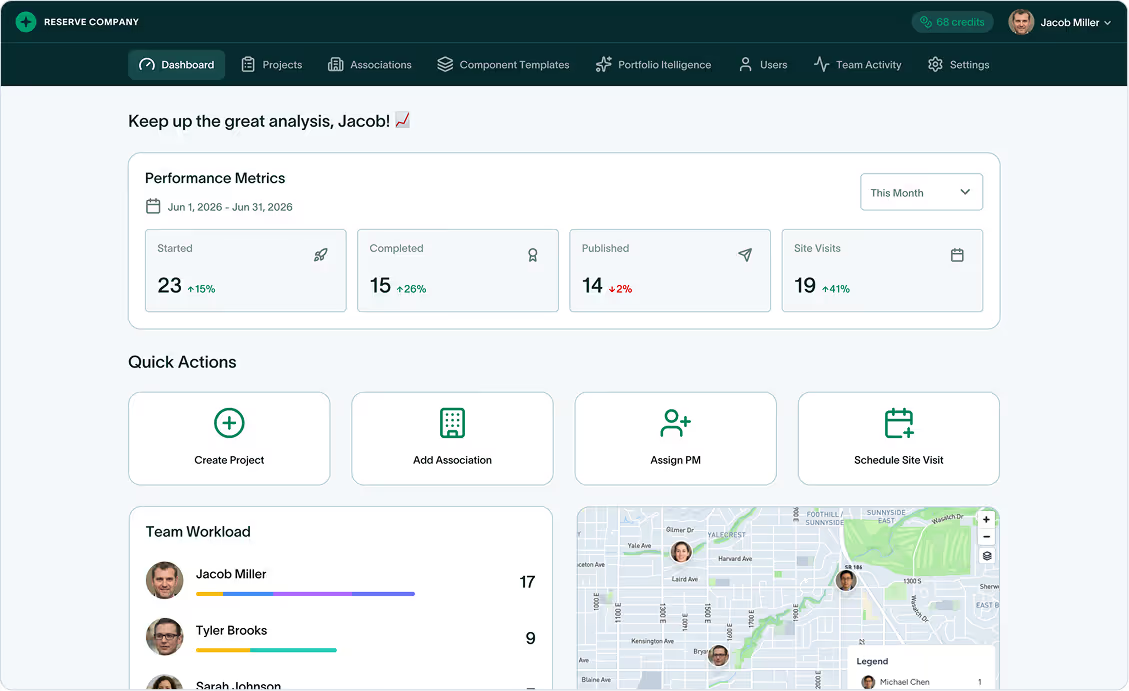
Team Management, Activity Tracking, and Default Company Settings
Run Your Firm, Not Just Your Projects: Team Management and Company Defaults
This week we've shown you Field Mode, Dashboard and Project Builder, Report Customization, and Association Management. Each feature makes individual projects better.
Today, we're zooming out to the company level.
PropFusion 2.0 introduces tools to manage your entire firm: redesigned team management, comprehensive activity tracking, and company defaults that apply to every project you create. Set your preferences once—funding plans, report styling, section layouts—and every new project inherits them automatically.
Let's walk through it.
Team Management: Your Entire Team at a Glance
Open the Team Members screen and you'll see every person in your organization displayed as cards.
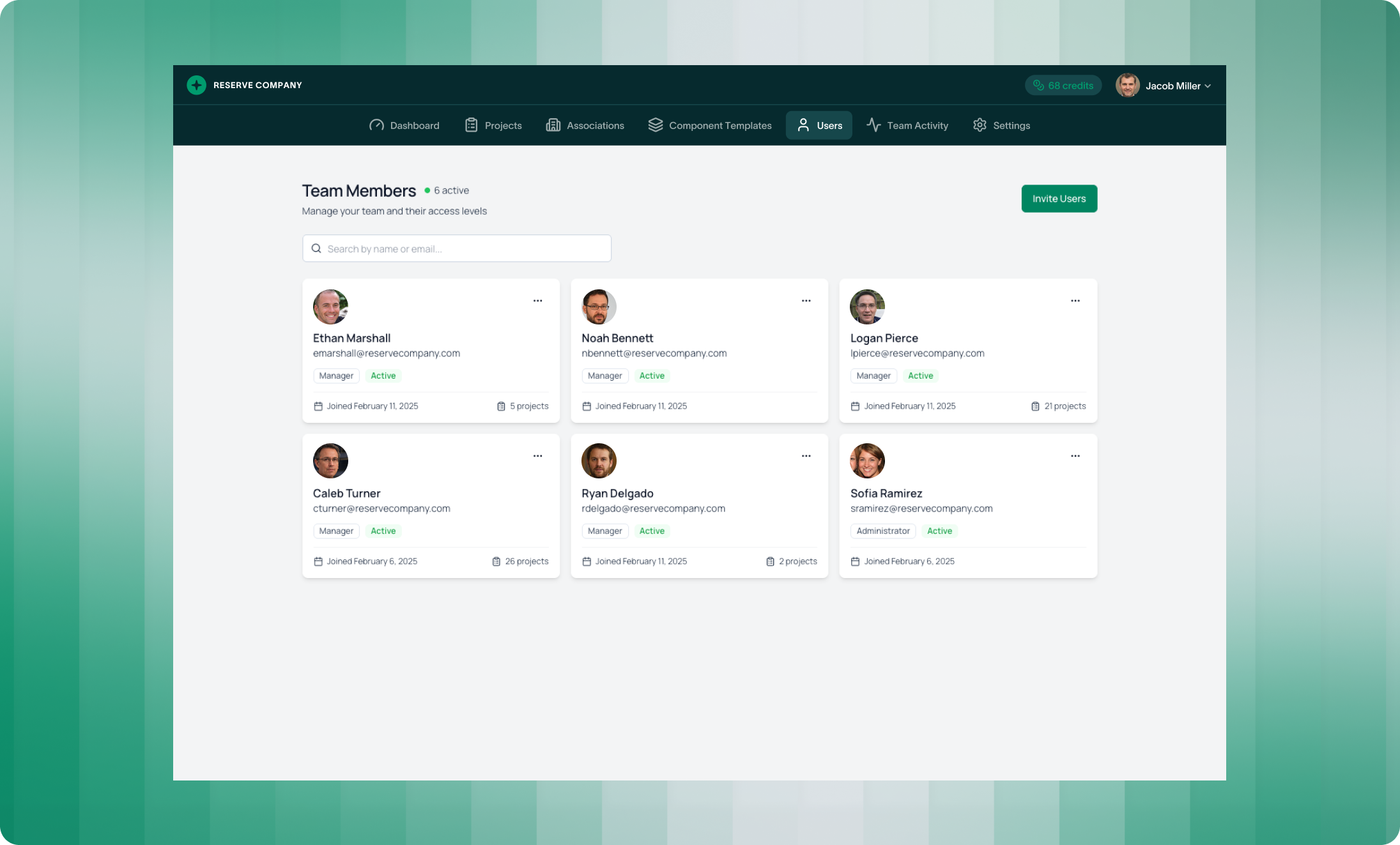
Each card shows:
- Name and email - Who they are and how to reach them
- Role - Manager or Administrator
- Status - Active or Deactivated
- Join date - When they joined your PropFusion account
- Project count - How many projects they're assigned to
Search by name or email to find specific team members. The "Invite Users" button in the top right lets you add new people to your account.
The card layout gives you a complete overview without clicking through menus. See who's active, who has the most projects, and who might need work assigned - all from one screen.
Individual Team Member View
Click any team member card to see their detailed profile.
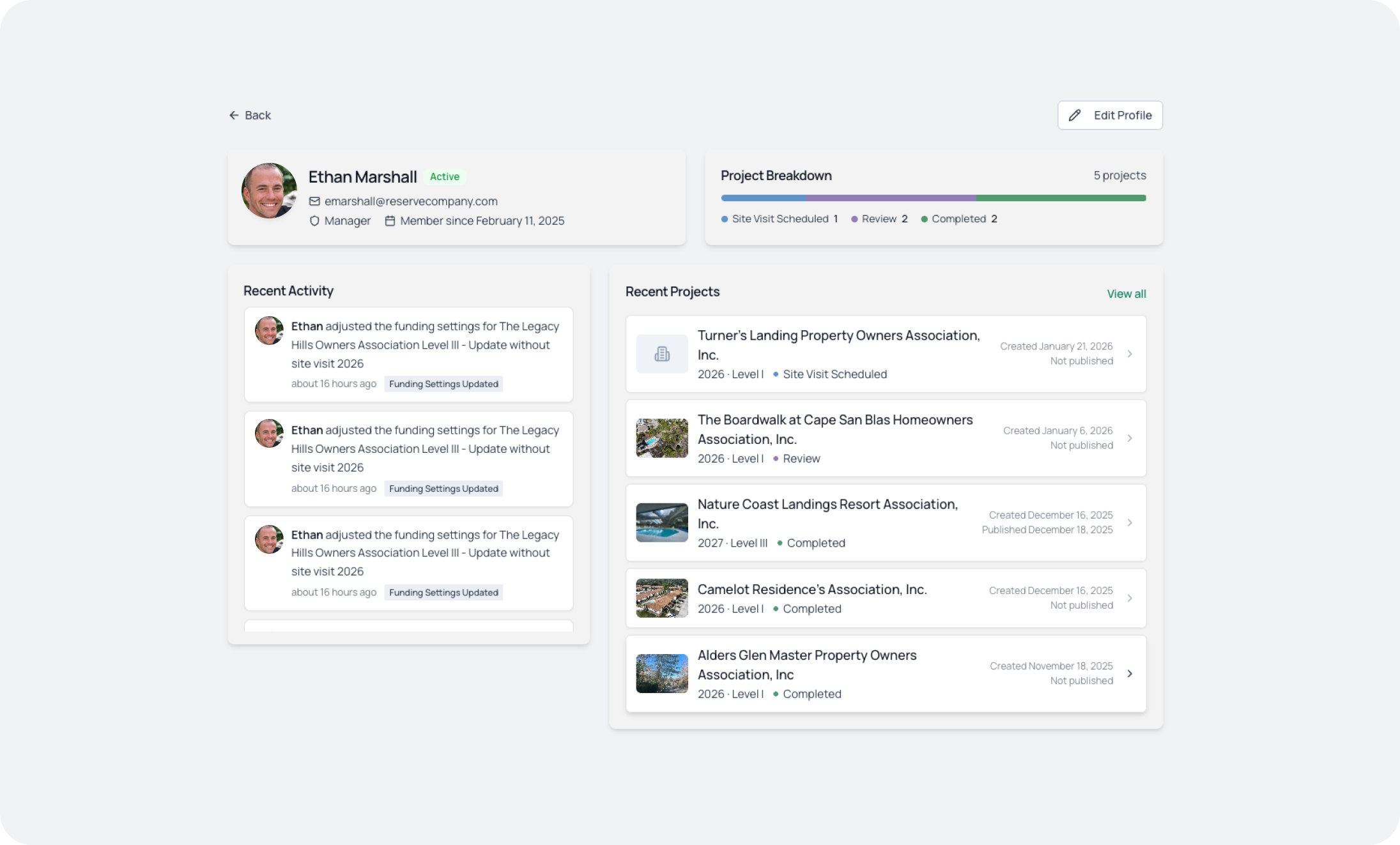
The header shows their basic info: name, email, role, and member-since date. Next to it, you'll see a Project Breakdown - a visual bar showing how their projects are distributed across statuses:
- Draft
- In Progress
- Review
- Completed
This tells you at a glance whether someone is overloaded with in-progress work or has capacity for new assignments.
Below the header, two sections give you full visibility:
Recent Activity shows everything this team member has done—adjusting funding settings, updating components, uploading files. Each activity entry shows the action, the project it relates to, the timestamp, and a tag indicating the activity type (like "Funding Settings Updated" or "Component Updated").
Recent Projects lists the projects they're working on, with:
- Association name and image
- Year and study level
- Status (Draft, In Progress, Review, Completed)
- Created and published dates
Click any project to jump directly into it. Click "View all" to see their complete project history.
Team Activity: See Everything Happening Across Your Firm
Need a broader view? The Team Activity screen shows all activity across your entire organization.
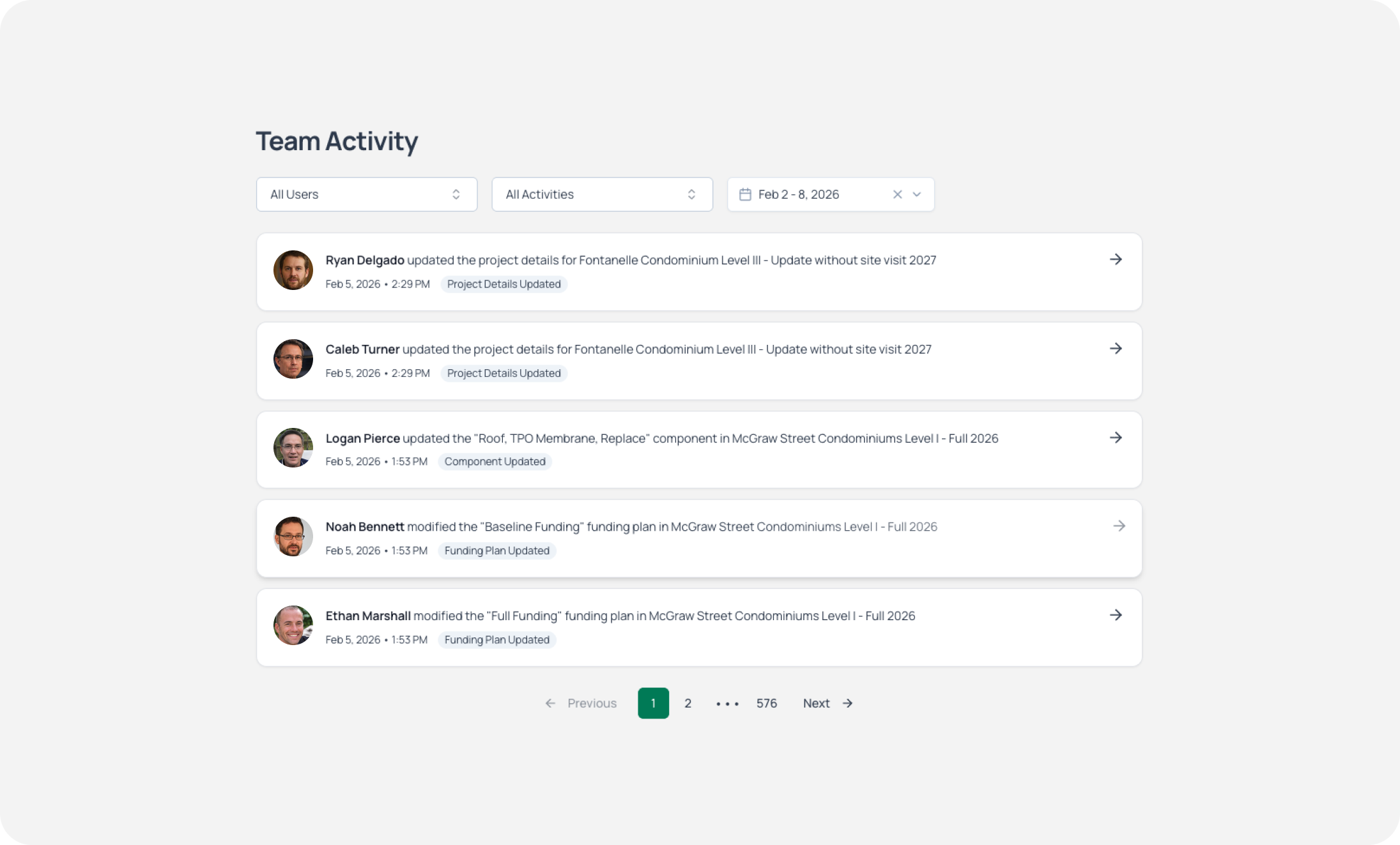
Three filters let you focus on what matters:
- User filter - See activity from all users or select specific team members
- Activity type filter - Filter by activity type (component updates, funding changes, file uploads, etc.)
- Date range filter - Set a custom date range to review
The activity feed shows each action with the person who performed it, what they did, which project it affected, and when. Pagination handles large activity volumes—the example shows 529 pages of history.
This is accountability and visibility for your entire operation. See who's making progress, identify bottlenecks, and keep projects moving.
Company Default Funding Plans
Here's where PropFusion 2.0 saves serious time.
Every reserve study needs funding plans. Until now, you configured these for each project individually. Now you can set company defaults that automatically apply to every new project.
Navigate to Settings > Default Plans and you'll see the configuration screen.
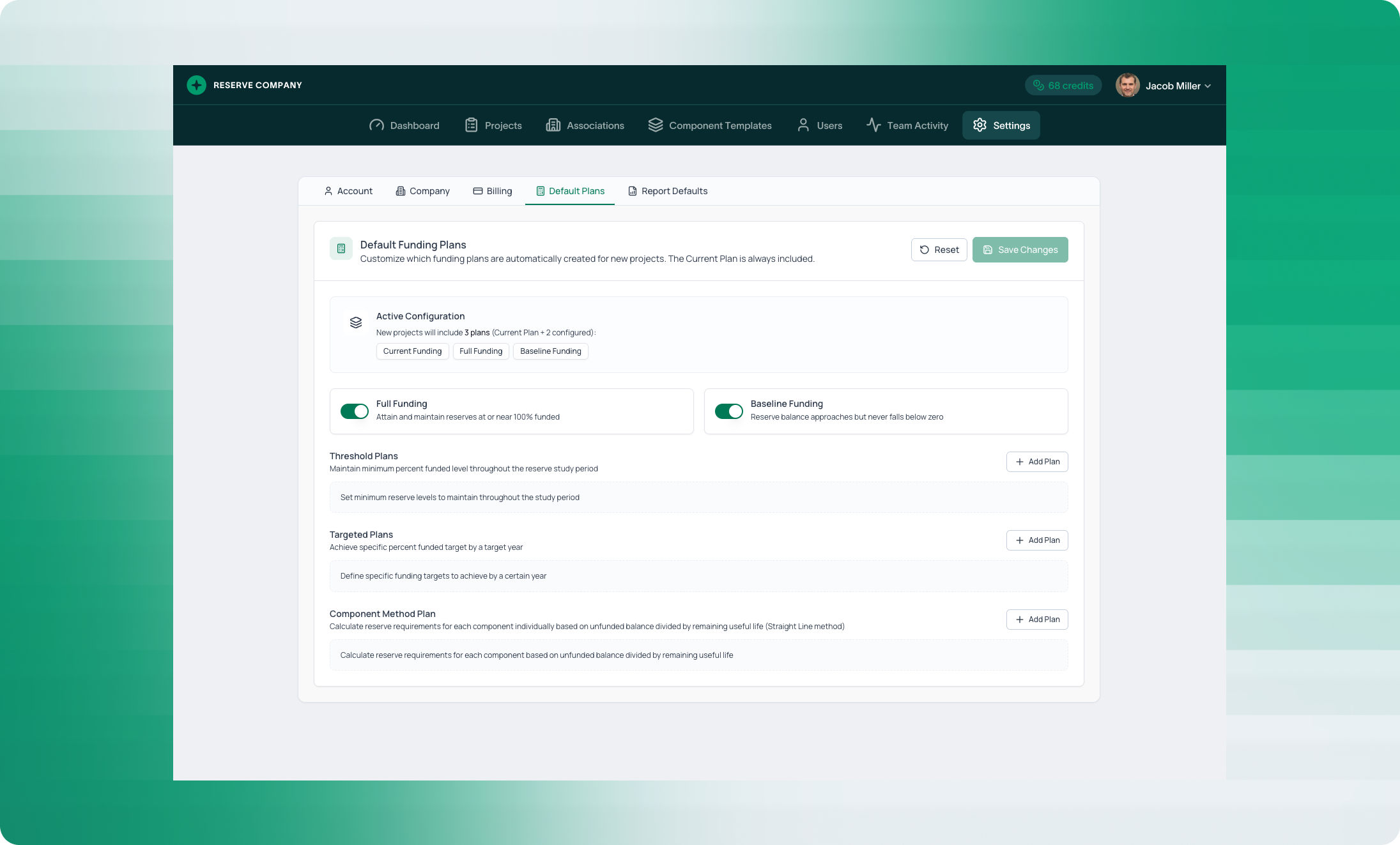
Each card shows:
Active Configuration shows which plans are currently set as defaults. In the example, new projects will include 3 plans: Current Plan plus 2 configured defaults.
Full Funding - Toggle this on to automatically include a Full Funding plan. This calculates contributions to attain and maintain reserves at or near 100% funded.
Baseline Funding - Toggle this on to include a Baseline Funding plan. This calculates the minimum contributions needed so reserves never fall below zero.
Threshold Plans - Click "Add Plan" to define threshold-based funding. Set minimum percent funded levels to maintain throughout the reserve study period. Add as many threshold plans as your firm typically uses.
Targeted Plans - Click "Add Plan" to define targeted funding. Set specific percent funded targets to achieve by a target year. Again, add as many as you need.
Component Method Plan - Click "Add Plan" to include Straight Line method calculations. This calculates reserve requirements for each component individually based on unfunded balance divided by remaining useful life.
Once configured, every new project starts with your funding plans already set up. No more rebuilding the same plans for every association. Configure once, apply everywhere.
Company Report Defaults
On Day 3, we showed you the redesigned Report Builder with full customization—cover pages, break pages, headers, typography, colors, section settings.
That customization was per-project. Today's feature makes it company-wide.
Navigate to Settings > Report Defaults and you'll see the complete styling interface.
The left sidebar shows every configurable section:
- Style (typography and colors)
- Cover Page
- Break Page
- Header
- Footer
- Letter to the Reader
- Observations
- Components
- Anticipated Expenditure
- Disclosures
- Layout
The right side shows live previews - both the cover page and chart styling - so you see exactly how your defaults will look.
Click "Save All" and your settings apply to every new report. Individual projects can still override defaults when needed, but most reports will generate with your firm's branding already in place.
This is the "set once, apply everywhere" principle across your entire report output.
What This Means for Your Firm
Team visibility. See your entire team, their workloads, and their activity from one place. No guesswork about who's doing what.
Accountability. The activity feed creates a complete audit trail. See exactly what changed, who changed it, and when.
Consistency. Company default funding plans mean every project starts with your firm's standard methodology. No missed plans, no inconsistent approaches.
Brand consistency. Report defaults ensure every document that leaves your firm looks professional and on-brand. Same fonts, same colors, same structure.
Time savings. Stop rebuilding the same settings for every project. Configure once at the company level, then focus on the work that actually requires your expertise.
This Is Day 5
Tomorrow, we're continuing with more PropFusion 2.0 features. Stay tuned.
See how fast your team can produce a report in PropFusion
We’ll walk through templates, QA steps, and publishing - end to end.