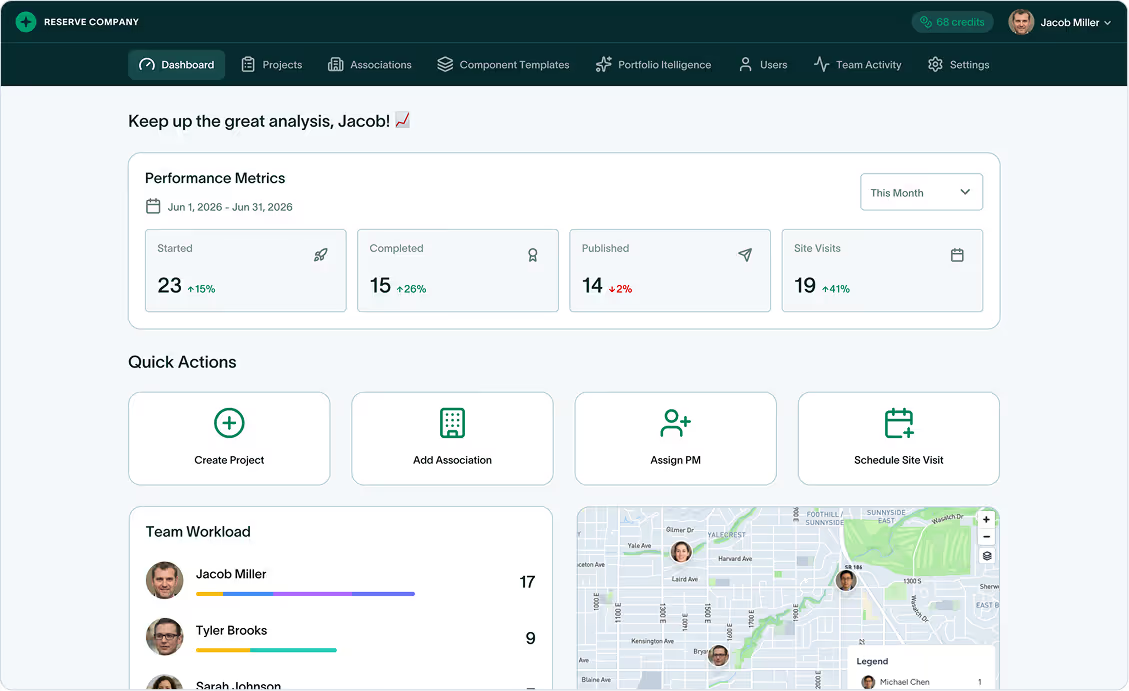
Portfolio Map View and Association Details
From Portfolio Overview to Project History - Association Management Reimagined
On Day 1, we showed you Field Mode - capturing data on-site. On Day 2, the Dashboard and Project Builder. On Day 3, the redesigned Report Builder with full customization and state compliance.
Today, we're stepping back to show you where every project starts: your associations.
PropFusion 2.0 introduces a completely new way to manage your association portfolio. An interactive map gives you geographic context across your entire client base. A redesigned details screen puts every piece of important information - and every project - within reach.
Let's walk through it.
The Association Map View
Open the Associations page and you'll see something new: an interactive map showing every association in your portfolio.
The map displays your associations as clusters, with numbers indicating how many are in each region. Zoom in and the clusters break apart into individual markers. Click any marker to see the association name and jump straight to its details.
On the left side, you'll find your full association list - 1,211 associations in the screenshot example - with search and quick-reference information:
- Association name
- Location (city, state)
- Number of units
- Year established
This dual view—list and map together—lets you work however you prefer. Scroll the list to find a specific association by name, or pan the map to see what's in a particular region.
Adding a new association? Click the "Add Association" button in the top right. The new association appears in both the list and on the map immediately.
Single Association View: Everything at a Glance
Click "View Association Details" and you enter the redesigned association screen.
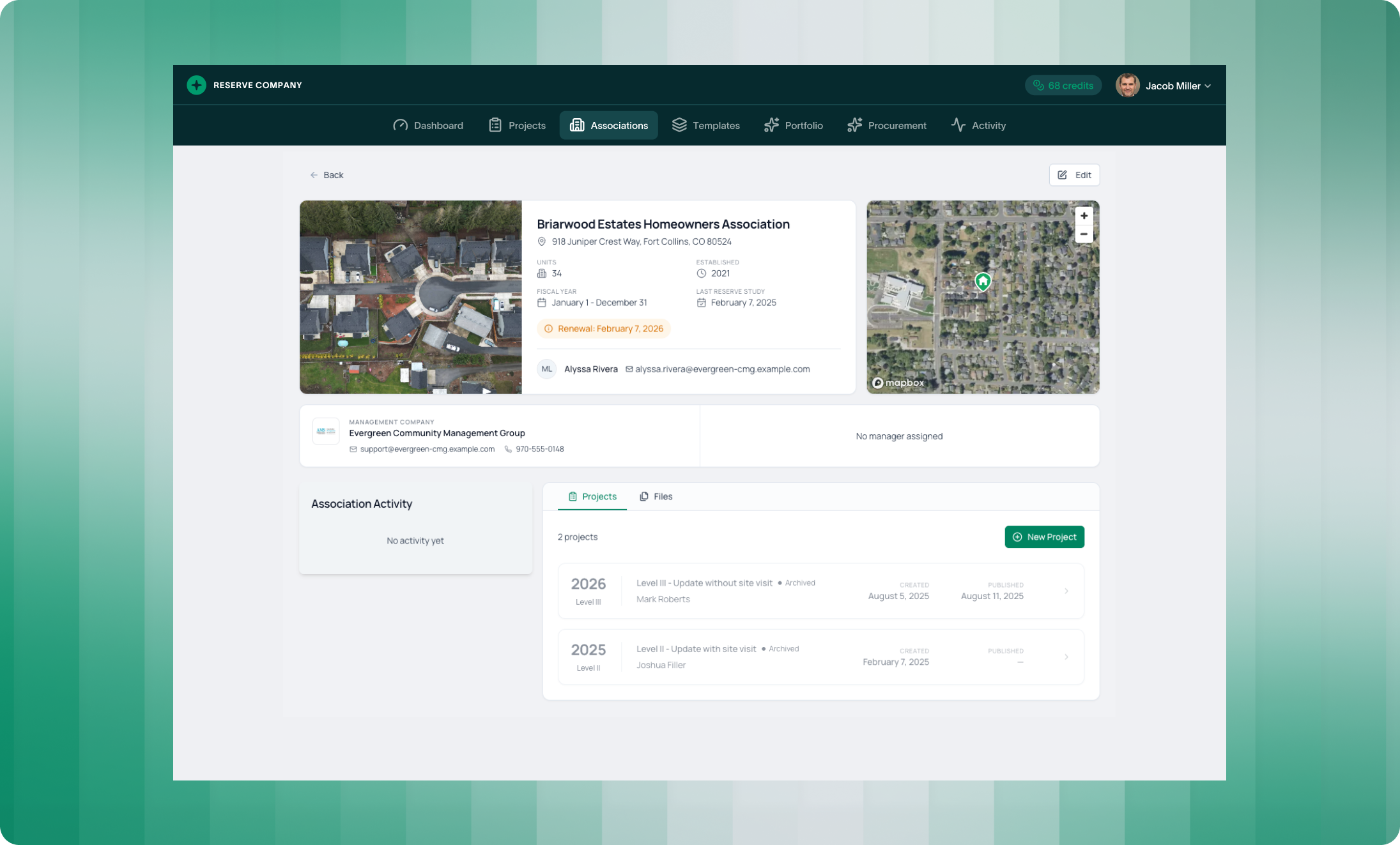
The header your association image alongside key details:
- Association name and address - Full street address prominently displayed
- Units - Total unit count
- Established - Year the association was founded
- Fiscal Year - Start and end dates for the association's fiscal period
- Last Reserve Study - Date of the most recent completed study
- Renewal Alert - State legislation renewal dates highlighted when upcoming
- Primary Contact - Contact person with name and email
The map on the right shows the association's exact location, giving geographic context without leaving the page.
Activity and Projects
Below the header, you'll find two key sections: Association Activity and Projects.
Association Activity shows recent actions related to this association—comments, updates, file uploads, status changes. This gives you a quick timeline of what's happened without digging through emails or notes.
Projects displays every reserve study project for this association, organized by year and study level:
Each project card shows:
- Year and level (Level I, Level II, Level III)
- Project type and description
- Status (Draft, Completed, Archived)
- Assigned team member
- Created and published dates
Click any project to jump directly into it. This is the connection point between your association records and your active work - see the full history, then start or continue your current project.
The "New Project" button lets you create a new study directly from the association view. The association details carry over automatically - no re-entering addresses or unit counts.
This creates a complete picture of what you assessed—and a clear audit trail for why certain items aren't funded.
Files Tab
Switch to the Files tab to see all documents associated with this association:
- Previous reserve study reports
- Board meeting minutes
- Correspondence
- Any other uploaded files
Everything related to this association lives in one place. When you need to reference a prior study or check what was discussed with the board, it's all here.
Edit Association Details
Need to update information? Click the Edit button in the top right.
The edit screen lets you modify all association details including fiscal year, address, image, contact infromation and more.
Select Property Image
The property image appears throughout PropFusion—on the association card in the list view, in the association details header, and on report covers.
PropFusion 2.0 adds a new way to set this image:
Click "Change" on the property image, and you'll see an interactive satellite map. Pan and zoom to position the property within the frame. Toggle between Streets and Satellite views. Show or hide street names. The white rectangle shows exactly what will be captured.
When you have the view you want, click "Save Selection." The satellite image becomes your association's property image—no need to take screenshots or upload external files.
Of course, you can still upload a custom image if you prefer. But for most associations, the satellite selector gives you a professional aerial view in seconds.
What This Means for Your Firm
Portfolio visibility. The interactive map shows your geographic reach at a glance. See where your associations cluster, identify regions for growth, or quickly find nearby properties.
Faster navigation. Jump from the map to association details to an active project in seconds. Everything connects.
Complete association records. Activity history, project list, and files—all in one place. No more hunting through folders or emails.
Accurate information. Edit association details once, and updates flow everywhere. Addresses, contacts, and property images stay consistent across reports and projects.
Professional presentation. The satellite image selector gives you polished property images without extra work. Your association cards and report covers look sharp.
See how fast your team can produce a report in PropFusion
We’ll walk through templates, QA steps, and publishing - end to end.